Performing a Conflict Search
To check the customer’s potential conflicts of interest, you can click on the magnifier button in the top menu. It opens a conflict search screen where you can look for the customer to be checked.
With the search criteria entered, the app looks for matches and displays the necessary details for each customer.
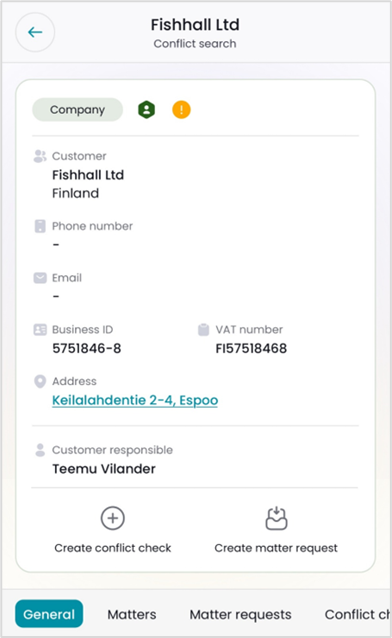
The icons on the customer type row indicate which roles the customer has had in the matters saved in the CSI software:
- Grey: No role in any matter
- Green: Coparty in one or several matters
- Red: Opponent in one or several matters
- Yellow: The customer is either blacklisted or has a matter request or a sales opportunity.
The screen also displays fields indicating if the customer has matter requests, active conflict checks, or open sales opportunities, or has been blacklisted.
 Creating a Conflict Check
By clicking on an individual search result, you can open the customer in a separate screen. The customer-related details such as matters, matter requests, former conflict checks, and notes can be found in their own tabs.
Once you have checked all the relevant details and wish to continue, click on the “Create conflict check” button to save the conflict check for the customer. It is saved with the status “In Progress” and will appear in the future conflict search results.
However, you cannot send conflict inquiries or approve/reject the conflict check in the app. These functions must be performed in the CSI software.
If the conflict search did not reveal any obstacles for taking on the matter, you can also create a matter request from this screen by selecting the “Create matter request” button.
Comments
0 comments
Please sign in to leave a comment.