You can add new critical tasks and tasks directly from emails and calendar events by selecting the Email actions / Calendar actions button the same way as when adding new transactions.
In all the calendars, you can scroll to one of the previous weeks, open an individual entry from the list to view it and then click the back arrow to return to the same week you were viewing.
The Tasks section also enables you to view, filter, add, and edit the tasks and critical tasks assigned to you. The Tasks screen displays Critical tasks and Tasks as separate tabs.
Critical Tasks in the App
By default, the app shows the Critical tasks tab.
The calendar above the critical task list indicates with a dot the dates containing critical tasks. Clicking a date opens the critical tasks registered for that date.
Using filters, you can view your completed critical tasks, incomplete ones or all.
When a filter is applied, a red dot appears in the filter icon. “Clear” removes all filters.
From the list, you can open an individual critical task to see its details.
Viewing and Editing Critical Tasks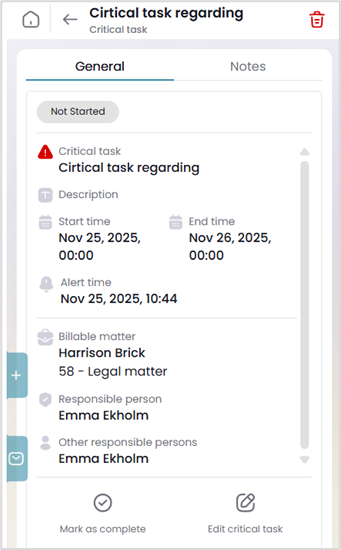
The General view displays the critical task details, the related matter (if any) and other persons responsible for the critical task. Clicking the View button, you can access details of the matter.
You can mark the critical task as completed or edit it. NOTE! If critical tasks in the CSI software are synchronized to Outlook, critical tasks cannot be edited in the app. With the Delete button on the top right corner you can also delete it.
By clicking the Notes tab, you can view notes related to the critical task and add new notes with attachments (max 1 MB).
After editing a critical task, save by selecting the “Save changes” button, if you leave the window without saving the changes made will be lost.
Adding Critical Tasks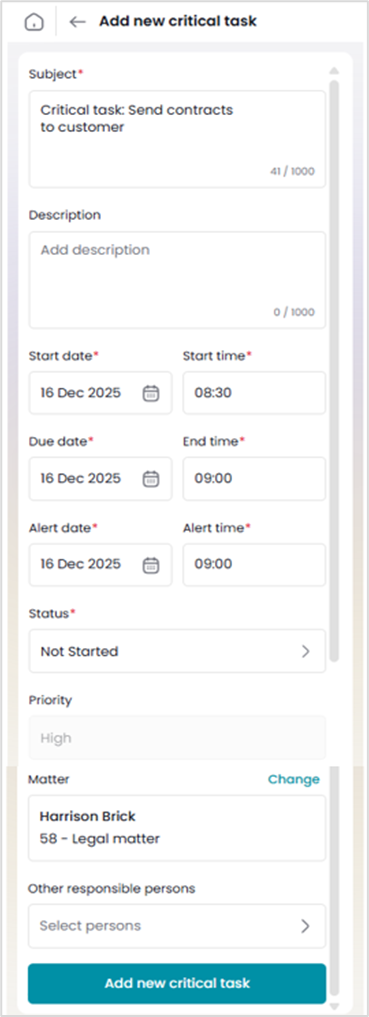
To add a new critical task:
- Select an email, click on the Email actions button and select “Add new task or critical task” > Critical task, OR
- Click a Calendar event open, open the CSI MyOutlook, select “Add new task or critical task” > Critical task, OR
- Open the Critical tasks screen and select the “+” button, OR
- Selecting Quick Action > New Critical Task.
- If you had a date selected in the calendar, it is prefilled as the date for the new critical task.
All the actions open a screen for creating a new critical task.
NOTE! If critical tasks in the CSI software are synchronized to Outlook, you cannot create critical tasks in the app.
If you attach a matter to the critical task, only your favorite matters are listed by default. Remove the favorite filter to see all the matters. You can also search for a matter.
Once all the details are filled in, you can save the critical task.
If you leave the window the critical task will not be saved and the information added will be lost.
After saving a new critical task, you can add related notes and their attachments (max 1 MB) to its Notes tab. Notes which are marked as important are displayed on the top of the notes list.
Managing Tasks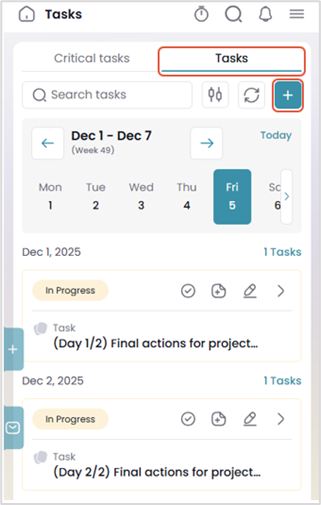
To view and edit tasks, and to add new tasks, click the Tasks tab open.
The calendar above the task list indicates with a dot the dates containing tasks. Clicking a date opens the tasks registered for that date as a list.
Using filters, you can view your completed tasks, incomplete ones or all.
You can click any of the tasks on the list to open it for viewing or editing.
The General tab of a task displays its details and related matter (if any). If there is a matter linked to the task, the View button enables you to view additional matter details.
You can mark the task as completed, edit it if it’s not completed, yet, or delete it. Additionally, you can create a billable transaction from the task.
The Work times tab allows you to attach the task to work time entries.
When marking a task as complete, the system will automatically create a transaction if the following conditions are met:
- The task is linked to a matter
- The duration entered is greater than zero for that task
- there is no former transaction.
This ensures accurate time tracking while preventing duplicate transactions.
In the Notes tab, you can view notes added to the task or add new ones with attachments (max 1 MB).
New tasks can be created in the Tasks tab by selecting the “+” or by selecting Quick Action > New Task.
When creating a new task, enter the details for the task. If you had a date selected in the calendar, it is prefilled as the date for the new task.
If the task is matter related, add the matter. By default, the app lists your favorite matters, but by removing the favorite filter you can see all the matters.
The duration of a task is entered manually.
Once you save the task, its Notes tab gets active and enables you to add notes and their attachments (max 1 MB) to the task.
Comments
0 comments
Please sign in to leave a comment.