CSI Mobile offers several different ways to record transactions, allowing you to choose the method that suits you best. You can record transactions:
- In the Dashboard or the Transactions screen, by adding a completely new transaction or using an existing one as a template.
- In the Timesheet screen, easily adding transactions for selected matters and dates. This option is recommendable if you mainly work on a few matters during the week.
- With the “Quick Action > New transaction” button available in the bottom menu.
- In the Matter screen, by selecting the Entries tab.
- Using the Timer.
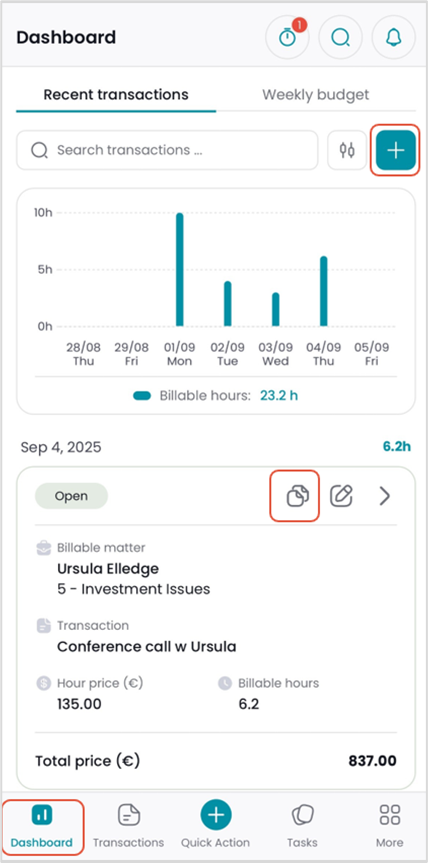 Recording in the Dashboard screen
Add a new transaction with the “+” button or
Select “Use as template” to copy a suitable transaction, make the required changes to it and save.
This works if you are adding transactions to a matter to which you have already recorded work during the last week.
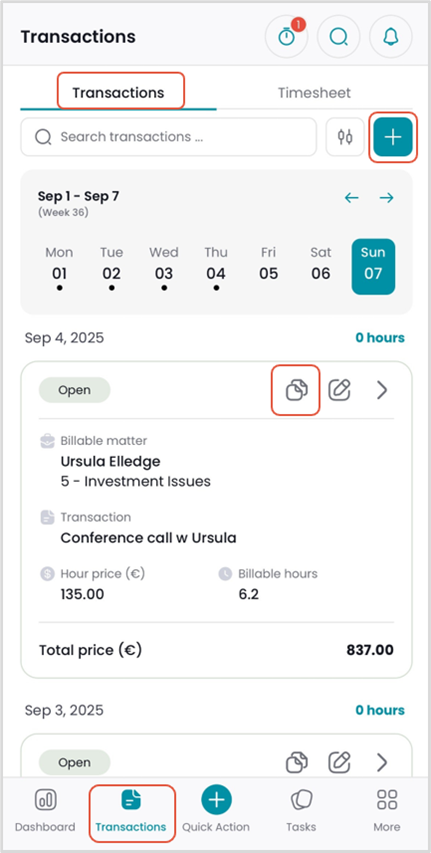 Recording in the Transactions screen
You can view your weekly transactions by swiping the calendar horizontally. The dates having transactions are indicated with a dot.
Your transactions for the chosen week are listed below the calendar.
Add a new transaction with the “+” button or by using the “Use as template” button.
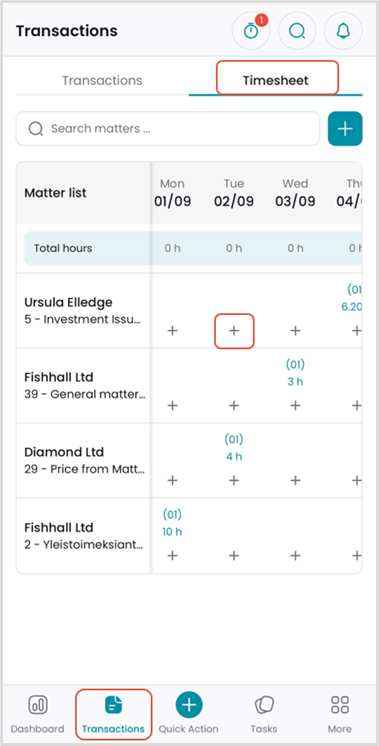 Recording in the Timesheet
As rows, the timesheet displays all the matters to which you have added billable transactions during the week. If the list of matters is long, you can search for a specific matter. The colored “+” button above the time sheet enables adding new matters to the list.
As columns, you’ll see the last 7 days including the current day.
Your total billable hours are summed up per day, and you can navigate between the days by swiping horizontally.
Each cell displays your total billable hours recorded for a specific matter on a particular date. Above the hour total, the number of transactions recorded in the matter is displayed.
To view the transactions recorded, click the cell to open the transaction list.
You can add a new transaction by clicking on the “+” button in any cell. The selected date and matter are pre-filled and cannot be changed.
After completing and saving the transaction, the time sheet reflects the updated billable hour amount.
NOTE! Using the time sheet, you can only add transactions with hour-based transaction types. Thus, transactions recorded elsewhere in other units (e.g., units, minutes, days) are not displayed on the time sheet either.
Recording with the Quick Action button
The Quick Action button opens another menu from where a new transaction can be created. The menu is available everywhere in the app.
Recording in the matter screen
You can also add transactions from the matter screen (More > Matters) by selecting a matter and clicking its Entries tab open.
The Entries tab displays both transactions and expenses recorded in the matter. When adding a new transaction here, the matter information is prefilled automatically.
Recording with the timer
To measure the duration of your transactions, you can select the Timer button on the top menu. The Timer screen displays any open timers you have. The “+” button adds a new timer.
Start by entering information (subject, matter, date, transaction type and possible skill) for the timer.
Then click “Add timer” to open the actual timer screen.
Start the timer with the button and stop it by selecting
.
The “-5 mins/+5 mins” buttons enable adding/deducting time, and with Reset the timer can be set to zero.
“Save” opens a transaction screen where you can fill in the required details and save the transaction. With “Close” you can just leave the timer without saving its value.
Comments
0 comments
Please sign in to leave a comment.