The Matters section behind the More button enables you to view matters and matter-related information. However, you cannot add new matters in the mobile app.
The Matters tab lists all the matters available in the CSI software and offers a search bar and filtering options to find the desired matter. You can search for all matters or just for your favorite ones.
The matter list displays for each matter its status, principal, number, name, responsible person and opening date.
A yellow icon indicates that the matter has normal notes attached.
If a blue icon is shown on the row, the matter has related important notes, for example notes recorded for the principal.
You can click on the matter on the list to see its details.
The additional matter-related details are organized into separate tabs for Entries, Parties, Identifications, and Notes
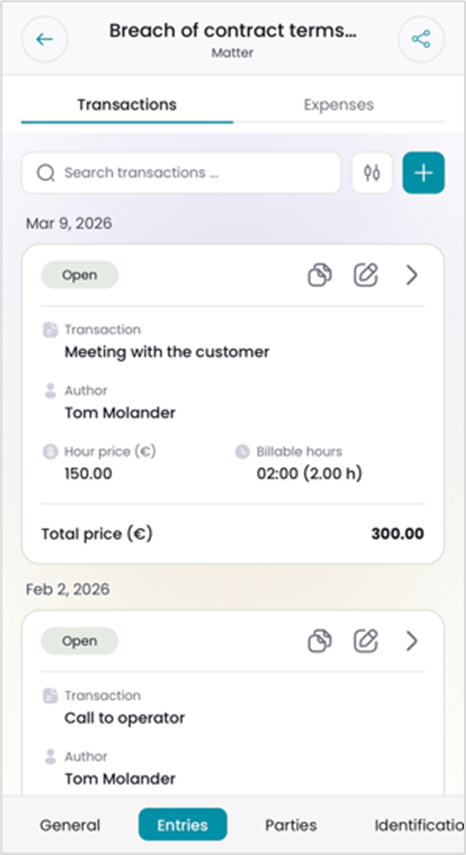 Matter-related entries
The Entries tab lists all matter-related transactions and expenses.
You can search for specific transactions or expenses and filter out all/open entries and either your own entries or the ones made by others.
For restricted users, these filters are locked to “My own”.
The parameters defined in the CSI software may also limit users’ access to their own entries only.
Matter parties
The Parties tab displays all customers involved in the matter. To restricted users, matter parties are not displayed. If there are multiple parties, you can search for a party with the name.
For each party the app displays the customer type (company/private person), name, roles within the matter, and the payer’s share.
You can click on any party to view its details: the home country, phone, email address, business ID and VAT number, address, and the customer responsible. The screen also allows you to view the party’s other matters and notes.
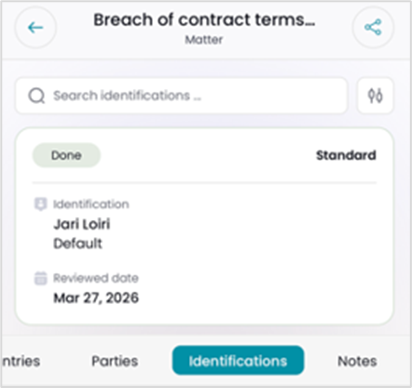 Matter-related identifications
If identification is in use, the Identification tab displays a list of any matter-related identifications which concern the customers involved in the matter. The tab is not displayed to restricted users.
For each identification event, the app displays its status (not started, started, done), the required Identification level (simplified, standard, enhanced, not needed), the customer’s name, the risk assessment level and the date when the identification was last reviewed.
Matter-related notes
In the Notes tab, you can store additional information relevant to the matter. Notes are not displayed to restricted users.
For each note entry, the app displays the author of the note, the note text, and the creation date.
By clicking on the Edit button , the app opens a screen where you can edit the note content. After making your changes, click somewhere at the top of the screen to hide the keyboard and to have the Save button displayed.
Comments
0 comments
Please sign in to leave a comment.